


Managing Windows Server 2025 Upgrades with Minimal Disruption

Windows Server 2025 Upgrade with Strategies
Upgrading to Windows Server 2025 is a big step for any IT environment. It promises new features, better security, and improved performance. But the process can also bring challenges. If not planned well, upgrades can cause downtime, data loss, or compatibility issues. I want to share practical strategies to help you plan your path to Windows Server 2025 while minimising disruption.
Understanding the Upgrade Landscape for Windows Server 2025
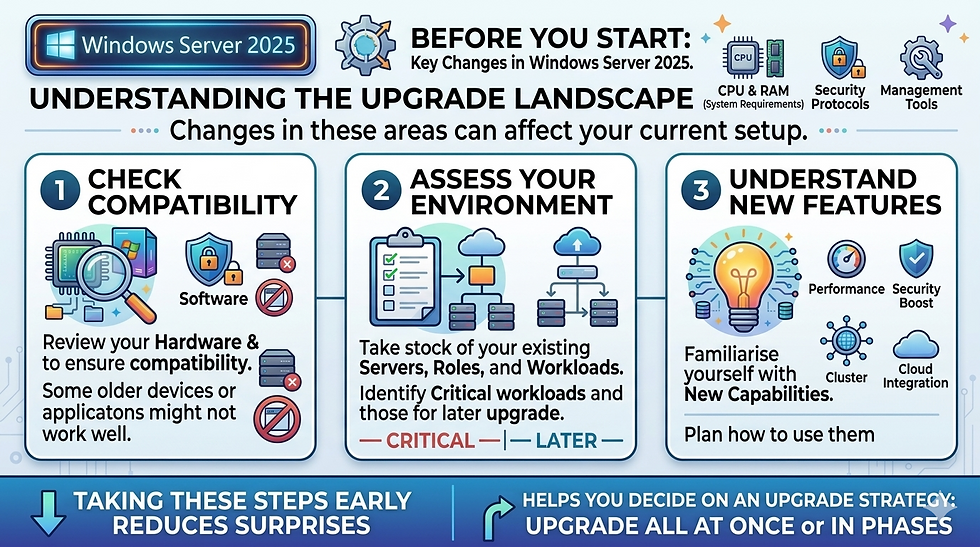
Before you start, it’s important to know what you’re dealing with. Windows Server 2025 introduces changes in system requirements, security protocols, and management tools. These changes can affect your current setup.
Check compatibility: Review your hardware and software to ensure they are compatible with Windows Server 2025. Some older devices or applications might not work well after the upgrade.
Assess your current environment: Take stock of your existing servers, roles, and workloads. Identify which ones are critical and which can be upgraded later.
Understand new features: Familiarise yourself with Windows Server 2025's new capabilities. This helps you plan how to use them effectively.
Taking these steps early reduces surprises during the upgrade. It also helps you decide whether to upgrade all servers at once or in phases.
Planning Your Upgrade Path Step by Step
A clear plan is your best tool to avoid downtime and data loss. Here’s a stepwise approach I recommend:
Backup everything
Before any upgrade, back up your data, system state, and configurations. Use reliable backup solutions to ensure you can restore if something goes wrong.

Test in a lab environment
Set up a test environment that mirrors your production setup. Perform the upgrade there first to spot issues and test compatibility.

Choose the upgrade method
Decide between an in-place upgrade or a clean installation. In-place upgrades keep your settings but may carry over issues. Clean installs are fresh but require more setup.

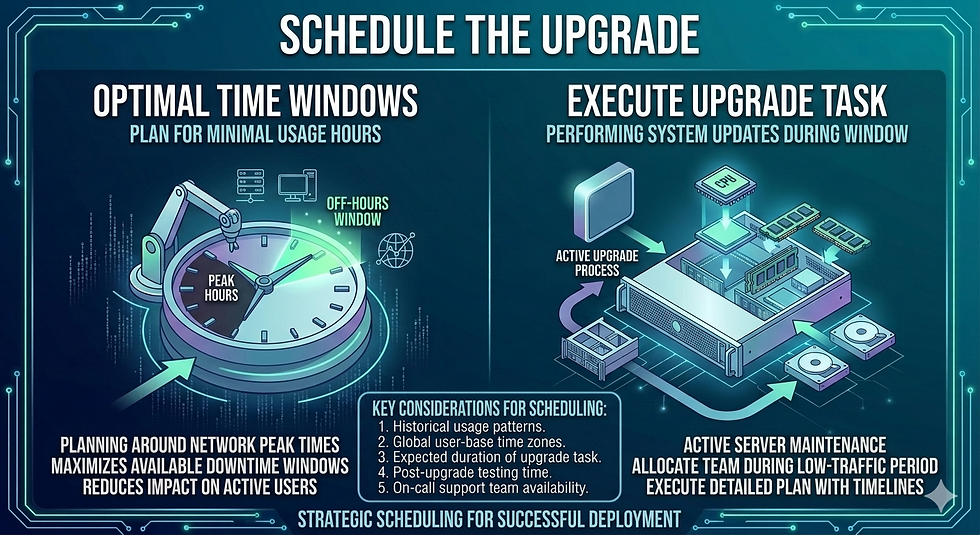
Schedule the upgrade during low-usage hours
Plan the upgrade when your network and users are least active. This reduces the impact of any downtime.
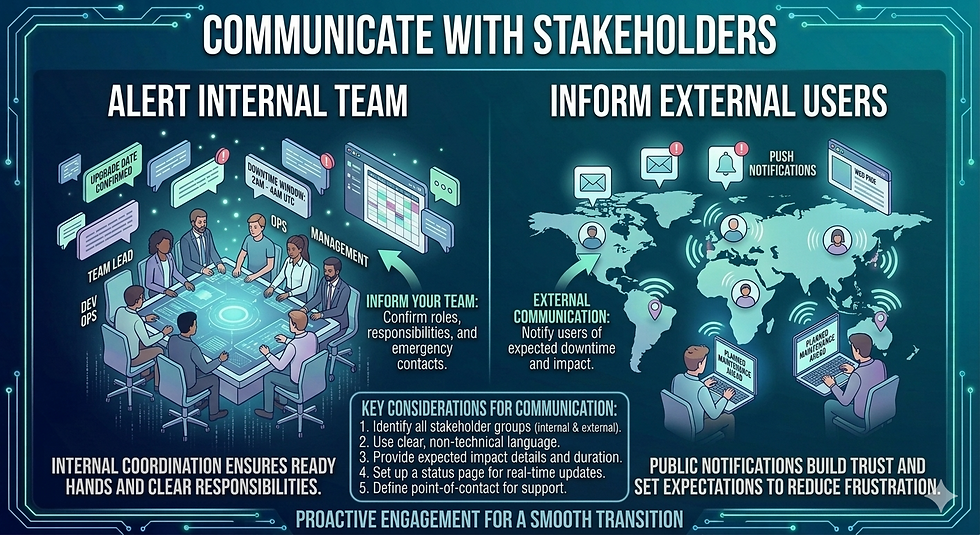
Communicate with stakeholders
Inform your team and users about the upgrade schedule and expected downtime. Clear communication helps manage expectations.
Monitor the upgrade process
Keep an eye on the upgrade progress. Be ready to troubleshoot or roll back if needed.

Post-upgrade testing
After upgrading, test all critical services and applications. Confirm everything works as expected before returning to full operation.

Using Tools to Simplify and Secure Your Upgrade
Upgrading to Windows Server 2025 is significantly smoother when leveraging professional automation and monitoring tools. By utilising these solutions, you can reduce manual workloads, minimise human error, and maintain a high security posture throughout the transition.
Automated Patching and Update Management
Specialised patching solutions streamline upgrades by automatically ensuring all dependencies and security baselines are met. These tools scan your environment for missing updates and deploy them without requiring constant manual oversight.
Key Benefits: Automates the delivery of critical security fixes, ensures compliance across all server nodes, and provides detailed progress reporting.
Examples: Microsoft’s own Windows Server Update Services (WSUS) or Microsoft Endpoint Configuration Manager (MECM) are standard choices. For third-party alternatives, tools like ManageEngine Patch Manager Plus or Ivanti Neurons offer robust cross-platform automation.

Full-Stack Performance Monitoring
Maintaining visibility into server health—before, during, and after the upgrade—is vital for spotting performance bottlenecks early. Monitoring tools provide real-time data on system vitals to ensure the new OS handles your workloads efficiently.
Key Benefits: Tracks real-time CPU, memory, and disk usage; alerts administrators to anomalies that could derail an upgrade; and confirms post-upgrade stability.
Examples: Microsoft provides built-in tools like Performance Monitor (PerfMon) and the Windows Admin Center. For comprehensive enterprise monitoring, solutions such as SolarWinds Server & Application Monitor, Datadog, or Nagios provide deep insights into complex server environments.
By integrating these tools into your workflow, you move from reactive troubleshooting to proactive management, ensuring your path to Windows Server 2025 is both secure and efficient.
Minimising Disruption with Phased Upgrades and Virtualisation
If you manage many servers, upgrading all at once can be risky. A phased approach helps reduce disruption.
Upgrade non-critical servers first: Start with servers that don’t affect daily operations. This lets you test the upgrade process without major risks.
Use virtualisation: Tools like Microsoft Hyper-V or VMware let you create virtual servers. You can test Windows Server 2025 upgrades on virtual machines before touching physical servers.
Migrate workloads gradually: migrate applications and services to upgraded servers in stages. This avoids sudden downtime.
Phased upgrades give you time to fix issues and train your team on new features. It also helps keep your business running smoothly.

Handling Common Upgrade Challenges
Upgrades don’t always go as planned. Here are some common problems and how to handle them:
Compatibility issues: Some applications or drivers may not work with Windows Server 2025. Use compatibility testing tools and check vendor support before upgrading.
Data loss risk: Always back up data before upgrading. Use reliable backup software and verify backups regularly.
Downtime: Schedule upgrades during off-hours and inform users in advance. Use failover clusters or load balancing to keep services running.
Performance drops: Monitor server performance closely after the upgrade. Adjust settings or roll back if needed.

Being prepared for these challenges helps you respond quickly and keep disruption to a minimum.
Keeping Security Strong During and After the Upgrade
Security is a top priority when upgrading servers. Windows Server 2025 includes new security features, but you must also follow best practices.
Apply all security patches: Use tools such as ManageEngine Patch Manager Plus to keep your servers up to date.
Review firewall and access controls: Confirm that your security settings are intact after the upgrade.
Use multi-factor authentication: protect admin accounts with an extra layer of security.
Monitor logs and alerts: Watch for unusual activity during and after the upgrade.

Security should never be an afterthought. Planning for it from the start keeps your systems safe.
Final Thoughts on Managing Windows Server 2025 Upgrades
Upgrading to Windows Server 2025 is a chance to improve your IT environment. With careful planning, testing, and the right tools, you can make the process smooth and safe. Remember to back up data, test upgrades in a lab, and communicate clearly with your team. Using products like ManageEngine Patch Manager Plus and SolarWinds Server & Application Monitor can help you automate tasks and monitor progress. These tools reduce manual work and help catch issues early.
If you want to stay updated on the latest in IT and server management, consider following an online technology trend analysis blog. It’s a great way to keep learning and prepare for future upgrades.
By following these steps, you can upgrade to Windows Server 2025 with confidence and minimal disruption. Start planning today to make your upgrade a success.
One-page summary handout for the IT Team


Comments